Molecule Desktop Utility
Installation
Download the installation package from this link: Molecule Desktop Utility Setup
You may get some security warnings, you can safely ignore them and proceed to download and install.
Application Sections
Device Access
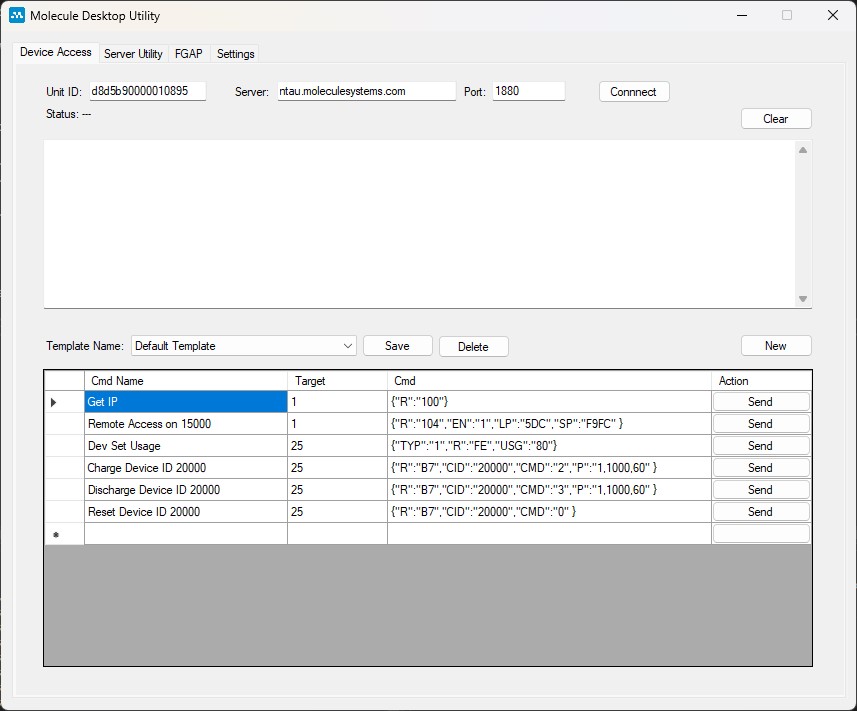
- Send direct commands to MOS350 based devices
- Unit ID is your MOS350 unit ID
- Server should be set to ntau.moleculesystems.com and port should be 1880
- Click the Connect button to connect to the device before you send any commands
- Command Type 1 is directed to OS related commands
- Command Type 25 is directed to your application listening to ID 25
- Click the Send button to send your command
- To create new command templates, click the New button
- Assign a meaningful name to each command for easy reference in the future
- Don't forget to Save your changes to the template
Command templates are stored in the [installation directory]/templates folder
FGAP (PDP Function)
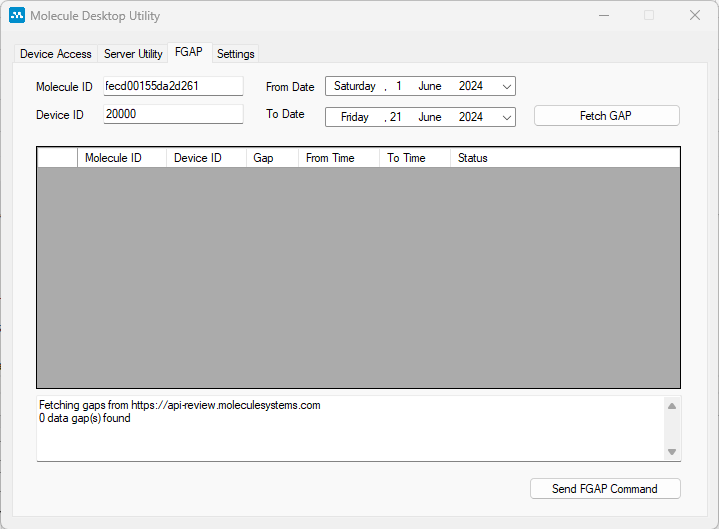
Before you proceed with FGAP functions, make sure the details in the Settings Section are all correct.
- FGAP function fetches and refills missing data in the PDP application
- Molecule ID is the ID of your MOS350 gateway
- Device ID is your Meter ID that was paired to your gateway
- From Date and To Date are the date range you want to check for gaps in data
- Click the Fetch GAP button to fetch gaps in data
- If no gaps exist for the given dates, the table will be empty
- When gaps are present, you will see a list of gaps presented in the table below the Fetch GAP button
- If you would like to send a FGAP Command to the gateway, click the Send FGAP Command button
- Depending on the gaps, it may take a few minutes to complete the task of filling the gaps
- Each data post (15 minute interval data) takes around 5 seconds to process
Settings
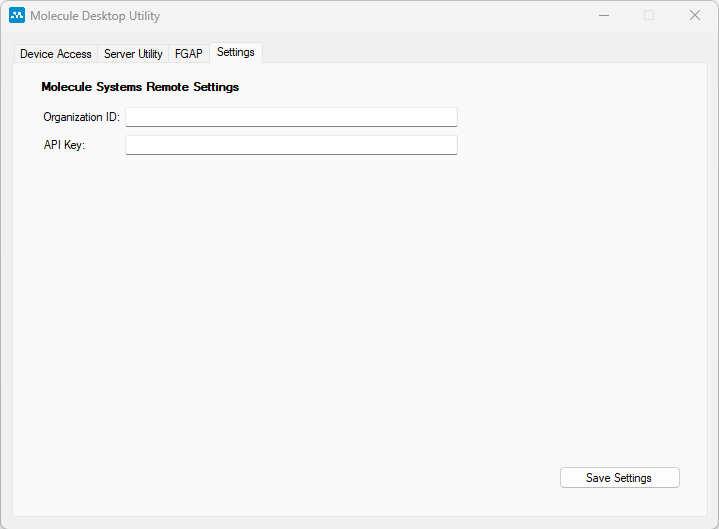
- You will need to provide your Organization ID and API Key to access the FGAP function
- Click Save Settings to save this information
If you don't have your Organization ID or API Key, please contact support@moleculesystems.com to obtain this information.
Server Utility (Remote Tunnel Access)
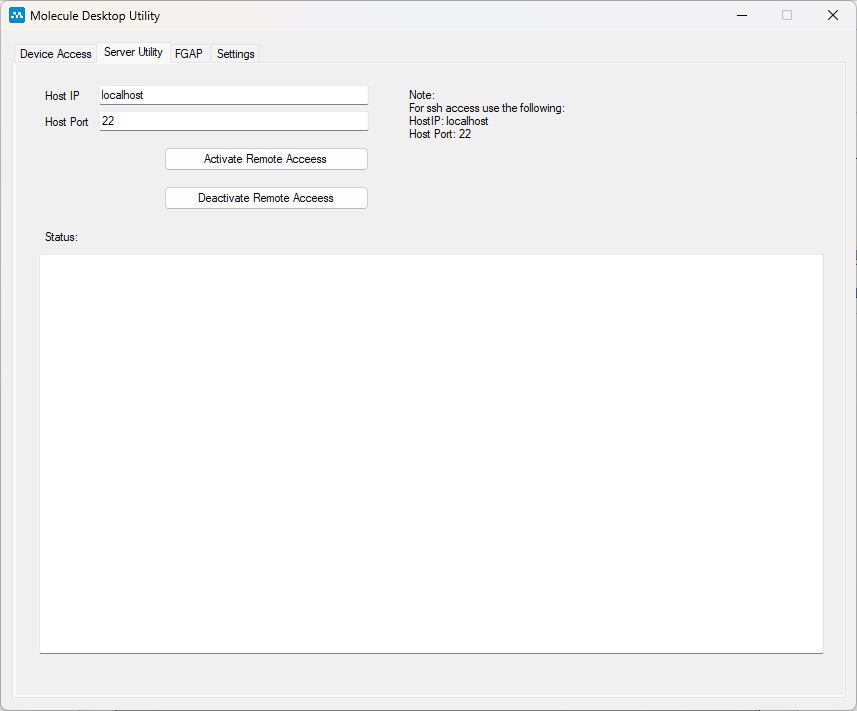
The Molecule Device ID (MID) and other relay server details must be configured in the Device Access tab before you can successfully establish a remote tunnel.
The Server Utility tab is part of the Molecule Desktop Utility, designed to establish secure remote tunnels for a MOS350 gateway. This feature allows you to securely access your gateway or any connected devices from a remote location using a secure shell (SSH) or any other TCP/IP-based connection.
- To access the MOS350 gateway itself: Keep the Host IP set to
localhostand the Host Port as22. Port 22 is the standard port for SSH. - To access a connected (downstream) device: Enter the specific IP address of the downstream device in the Host IP field, then enter the specific port number in the Host Port field.
- Activate the Tunnel: Once you have entered the correct details, click the Activate Remote Access button.
- Deactivate the Tunnel: To close the secure connection, click the Deactivate Remote Access button. This will terminate the tunnel and end your remote access session.
- The Status box at the bottom of the screen will show you the progress and outcome of the connection/disconnection attempt.